Tuesday, 8 October 2019

7 Tips to Fix Internet Running Slow on Mac

Tip 1: Check Your Internet Connection

Many times, the internet connection which your Mac system is connected to may be the reason behind the internet is slow on your Mac. To check this, you can see if the internet connection on your Mac is established properly. You can try to connect any of your other devices to this wireless network and see if the internet is working properly. If it is, then you can disconnect and reconnect your Mac to the wireless network and try again.

Tip 2: Test Your Internet Speed

Wondering about why is my Mac running slow on the internet? You may be paying for a slow internet connection. You can find this out by visiting the official website of the internet connection provider and check for the plan which you are using. You can even run the speed test online. If it is, then you just need to upgrade to a package which provides higher internet speeds. If it is not, then you may have to take certain measures to fix the internet connection.Also Read:Fix iPhone Black Screen with Spinning Wheel

Tip 3: Restart Your Router

Sometimes, the router may cause the issue of the internet being slow on your Mac. To fix this, turn off the router for a few minutes and turn it on again. Make sure that there are no objects blocking the signals from the router and connect your Mac with the wireless network to try again.

Tip 4: Test All Your Macs

If you have more than one Macs, try to connect them to the internet network and check the speed. If the issue of the internet being slow is only on one particular Mac, go to the Wi-Fi menu, and turn off the Wi-Fi for a few seconds and turn it on again. Such a simple action can restore the speed of the internet connection on your Mac system.

Tip 5: Enable Wireless Security

If you have not already enabled wireless security, you must do it now! Without this, many of your neighbors may be enjoying the wireless connection and then the internet may be slow on your Mac. Check the router's manual and set up a high-security password which nobody can guess.

Tip 6: Close Unnecessary Apps and Browser Tabs

If you have several apps and browser tabs open in the background, they all would be connecting to the internet and syncing data from time to time. This is one of the possible reasons why your Mac's internet may slow down and causing the websites stuck at the loading page. Please close all the unnecessary apps and browser tabs in the background, and open a new one to check the speed.

Tip 7: Using a Professional Mac Manager

In addition to the reasons mentioned above, there are other major aspects you should pay attention to. Such as full Mac disk, too many startups or overloaded browser extensions, all these can cause the problem of internet running slow on Mac. It can be very difficult to manage all these items manually, but it will be pretty easy if we have a specialized tool to finish all the process in just one-click.Also Read:Fix Ethernet Doesn’t Have a Valid IP Configuration: Full Guide in 2019
Tips:
Recover Photos, Videos, Contacts, Messages, Notes, Call History & Calendar from iPhone. Recover Lost or Deleted Data from Your iPhone in Just a Few Clicks. Free Download Now. Download Free Trial Now. Do-It-Yourself Software. 3 Million+ Happy Customer.


Thursday, 25 April 2019

All Tips & Tricks on iMessage Download


Apple’s iMessage is used by many iOS users for sending audios, pictures, messages, etc to other iOS users for free. It does not require any Wi-Fi or cellular connection and this is the reason non-iOS users are always searching for different ways for using iMessage. But iMessage app is limited to Apple devices only.


Part 1. iMessage App Download


Part 2. iMessages Download to PC/Mac
Part 1. iMessage App Download

Many websites and platforms offer iMessage download for Windows option, but you end up getting spams, junk emails or unwanted ads. So, in this article, we will show you the best tips and tricks for iMessage app download.
iMessage App Download for Windows

If you are using a Windows PC, you can check the methods given below. These methods will allow you to download iMessage on your Windows PC.

Option 1. Use Chrome Remote Desktop

The iMessage download for Windows is possible using Chrome Remote Desktop. It is a browser extension on Google Chrome. For this method, you need two computers, preferably one Windows and another Mac. If there is no Macbook, you can use other emulators for trying this method.

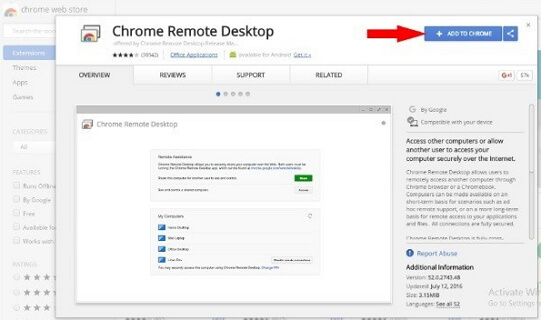
Step 1: Download the Chrome Remote Desktop extension on Google Chrome of both devices.

Step 2: Go to Tools and find Extensions. Add Chrome Desktop Extension to the Chrome.

Step 3: Under Browser Apps section, open the app.

Step 4: Now, download and install Chrome Remote Desktop on the Macbook.

Step 5: Set the Security PIN on the Mac for accessing Windows screen.

Step 6: Next, find and click on Remote Mac on the Windows PC for running the shared screen on PC.


Option 2. Try iPadian Emulator

If you want to browse your iPad iMessages on Windows PC, you can try iPadian Emulator.

Step 1: Open your browser on your Windows PC and go to ipadian.com for downloading and installing the emulator.

Step 1: After the installation, open it on your PC.

Step 2: On iPadian, search iMessage app.

Step 3: Download the iMessage app on your PC.

Step 4: Now you can view your iPad’s iMessages on the Windows PC. Make sure that you have a strong internet connection.


Option 3. Get Bluestacks Emulator

Bluestacks emulator is known among the Android users, but you can use this emulator for downloading and viewing the iMessage history on your Windows PC.

Step 1: Download Bluestacks on your device and install it.

Step 2: After the installation, open it on your PC.

Step 3: In the Search box on Bluestacks, enter iMessage.

Step 4: You will see an interface like that of an App Store.

Step 5: Next, download iMessage and follow the steps to set it up on this emulator.

Option 4. Use Cydia Application

Many people use Cydia for jailbreaking the iPhone, but you can also use Cydia for downloading the iMessages on Windows PC. If your iPhone or iPad is running on iOS 12, this method will not work. Follow the steps below and download iMessage on Windows PC.

Step 1: Download Cydia in your iPhone as well as PC. Open Cydia and search for Remote Messages.

Step 2: Now, install Cydia. Go to Settings and get Remote Messages for $4. A pop-up window will appear asking for your authentication. Click on “Use Authentication” and authorize it.

Step 3: Create a username and password. You can also use your Apple ID with .333 at the end. Ensure that your PC and iPhone are well connected to a Wi-Fi network.

Step 4: Open the browser on Windows PC and enter the IP address. Don’t forget to add a colon at the end. You will see an interface where you need to fill in all the information.

Step 5: Once you fill all the details, the remote connection between iPhone and PC will be accomplished.


iMessage App Download for Mac

The above methods were for Windows PC. If you are searching ways for iMessage app download for Mac then follow the steps below.

Downloading iMessage on a Mac is very simple because the iPhone and the Mac have similar systems. Before proceeding, make sure that your Mac is running on 10.8 or higher version. Just open App Store and download Messages application on your device.


Part 2. iMessages Download to PC/Mac

Using the above methods, you can download your iMessages app to your Mac or PC.

If you have already downloaded iMessage app on your Mac and you need download the iMessages to your Mac, it will be easy for you.

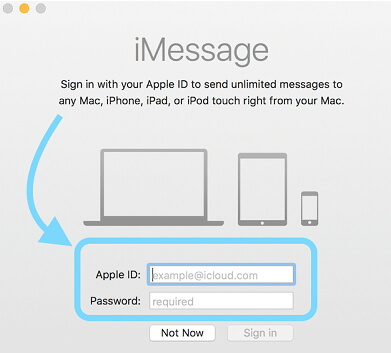
Step 1: Open Messages and enter your Apple ID credentials.

Step 2: When you sign in, the application will start scanning the message history in your Apple account. Now choose the message history you need. As soon as you do this, the selected messages will be synced on all Apple devices.


The above steps might seem to be difficult for you. Luckily, you can also download iPhone iMessages themselves directly to your PC or Mac using a professional third-party iOS tool.Sponsor ads:
Gihosoft RePicvid Free Photo Recovery Software provides a free photo recovery software for windows to help users recover the deleted or lost photo for free.

If you lost data after you updated to a new iPhone, you can always use Gihosoft iPhone Data Recovery to get the data back from the old iPhone or backup.You may also like: iphonerecovery.com

If you use android phones, please choose Gihosoft Android Data Recovery.With Gihosoft Android Data Recovery, no longer afraid of data loss!


Monday, 1 April 2019

2019 iPhones to Include Bigger Batteries to Support Reverse Wireless Charging

2019 iPhones to Include Bigger Batteries to Support Reverse Wireless Charging


While Apple is focusing on services in 2019 (and beyond), the company is still going to launch new iPhones this year.

The 2019 iPhone lineup doesn’t have a name yet, even out of the rumor mill, surprisingly enough. But we are starting to hear quite a bit about the device lineup’s upcoming features. One of the most recurring rumors at this point is support for what’s called “bilateral charging”, or reverse wireless charging. This means that, if the rumors are true, you’ll be able to put a device that supports wireless charging on the back of a 2019 iPhone to charge it.

Indeed, analyst Ming-Chi Kuo said as much last month, and now he’s back, reiterating that point in the latest investor’s note. Kuo expects that the 5.8-inch iPhone XS successor, the 6.1-inch iPhone XR follow-up, and the 6.5-inch iPhone XS Max’s sequel will all support bilateral wireless charging.

To make this a reality, Apple will reportedly upsizing the battery size in all three models this year. The 5.8-inch iPhone battery’s size will reportedly increase between 20 and 25 percent when compared to the current model. The 6.5-inch iPhone’s battery is said to get boosted by 10 to 15 percent. However, the 6.1-inch iPhone model will see a significantly smaller boost between 0 and 5 percent.
Our Take

Unless this is another AirPower situation, this new feature is probably safe bet for the 2019 iPhone lineup. Samsung introduced the same feature earlier this year with the Galaxy S10 lineup, and Samsung wasn’t even the first to do it for Android smartphones. It would also be a welcomed addition, now that AirPower is cancelled.
We Want To Hear From You

Is this a particularly useful feature in your opinion?

[via 9to5Mac]

Also Read:jihosoft Free iPhone Data Recovery

Sponsor ads:

Gihosoft Free iPhone Data Recovery:https://www.gihosoft.com/iphone-data-recovery-free.html

Gihosoft iPhone Data Recovery Free

Free iPhone Data Recovery Software for Windows/Mac

Recover up to 12+ types of files, including contacts, SMS, photos, WhatsApp, Viber, notes, etc.

Restore lost data from iOS devices directly or from iTunes and iCloud backup

Recover iPhone data lost due to iOS upgrade/jailbreak, accidental deletion, device lost or broken

Support all the latest iPhone, iPad and iPod Touch

Both Free and Pro version.

If you lost data after you updated to a new iPhone, you can always use Gihosoft iPhone Data Recovery to get the data back from the old iPhone or backup.You may also like: iphonerecovery.com

Also Read:Update Android

Also Read:Top 8 Best Alternative Websites to TamilGun in 2019

Also Read:Free Download FRP Bypass APK for Android 2019

Also Read:Best 10 Movie4k Alternative Websites for Movie Streaming 2019

Also Read:Top 32 Best Proxy and Mirror Sites to Unblock Fmovies 2019

Also Read:Best Torrent Search Engine Sites to Find Your Favorite Torrents 2019

Sunday, 31 March 2019

AirPods 2 Teardown: H1 Chip With Bluetooth 5.0, Same Batteries, and Water-Repellent Coating on Charging Case Board


iFixit today shared a teardown of the second-generation AirPods, providing a closer look at the H1 chip with Bluetooth 5.0 and the same 93 milliwatt hour battery in each of the AirPods in line with the original pair.


New charging case on left and new AirPods with H1 chip labeled in red on right via iFixit


The repair website also pried open the new wireless charging case, which continues to have a 398 mAh battery capacity, and said there is a new "water-repellent coating" on the circuit board. The teardown notes that the updated charging case "seems designed for increased durability, but not repairability."


Unsurprisingly, the new AirPods earned a zero for repairability, as iFixit says they remain "disappointingly disposable." AirPods are not designed to be serviced, as no hardware components can be accessed without damaging the earphones, and sealed-in batteries make the AirPods a consumable product.


Many of these details were already known, but the teardown still provides an interesting look at the internal differences compared to the first-generation AirPods. More photos and tech specs are available over on iFixit's website.

Also Read:jihosoft Free iPhone Data Recovery

Sponsor ads:

Gihosoft Free iPhone Data Recovery:https://www.gihosoft.com/iphone-data-recovery-free.html

Gihosoft iPhone Data Recovery Free

Free iPhone Data Recovery Software for Windows/Mac

Recover up to 12+ types of files, including contacts, SMS, photos, WhatsApp, Viber, notes, etc.

Restore lost data from iOS devices directly or from iTunes and iCloud backup

Recover iPhone data lost due to iOS upgrade/jailbreak, accidental deletion, device lost or broken

Support all the latest iPhone, iPad and iPod Touch

Both Free and Pro version.

If you lost data after you updated to a new iPhone, you can always use Gihosoft iPhone Data Recovery to get the data back from the old iPhone or backup.You may also like: iphonerecovery.com

Also Read:Update Android

Also Read:Top 8 Best Alternative Websites to TamilGun in 2019

Also Read:Free Download FRP Bypass APK for Android 2019

Also Read:Best 10 Movie4k Alternative Websites for Movie Streaming 2019

Also Read:Top 32 Best Proxy and Mirror Sites to Unblock Fmovies 2019

Friday, 1 March 2019

How to Delete No Name Contacts on iPhone/iPad


At some point as an iPhone user, you may notice that you have contacts on your device which don’t have a name. This can be an annoying scenario since you may not know which contact number belongs to whom. The first thing that comes to your mind when you see the no name contacts is how you can delete empty contacts on iPhone. In this article, we will be showing you exactly how this can be done. However, before you opt to delete no name contacts on iPhone, you can try fixing them. But, how can you fix these contacts? Let’s answer this question for you.
Try Fixing the No Name Contacts on iPhone Before Deletion

There are various solutions you can use to try and fix the No Name contacts issue on iPhone. In this section, we will outline all these solutions. Not all of them will work for you. Therefore, try the first solution and then move on to the next if the first one fails to work.
Solution #1: Toggle the Contacts Off and then On

Step #1: Visit your iPhone Settings and then tap on iCloud.

Step #2: Turn off the contacts and then turn them on again. Check your contact list to see if the problem is fixed.


Solution #2: Turn All Your iPhone Apps On

One thing to note before applying this fix is that you should avoid connecting your device to iTunes. This is because you may end up losing the applications that you had downloaded recently and hadn’t backed up. To apply this fix, follow the steps below:

Step #1: Visit Settings and then tap iCloud.

Step #2: Turn everything on.


Solution #3: Use Siri

The iOS virtual assistant can help you fix your No Name contacts. To use this fix, you just need to ask Siri to restore these contacts.


Solution #4: Re-Add Your Exchange Email Account

Also Read:Delete the Downloaded iOS Update on iPhone/iPad (iOS 12)

Sponsor ads:Fix Audio Issues on Windows 10 with 5 Methods that Work in 2019

The contacts associated with your Exchange Email account will disappear when you delete it. If this is the reason you have No Name contacts on your iPhone, you will need to re-add the Exchange email account to fix the problem. To re-add the Exchange Email account, follow the steps below:

Step #1: Open settings and then tap Mail, Contacts, Calendars.

Step #2: Tap on Add Account.

Step #3: Click Exchange and then use your account details to add the account back to your iPhone.

Note: if your iPhone is running on the latest iOS, namely, iOS 11 or later, then go to Accounts & Passwords under settings to proceed.


Solution #5: Toggle the Contact Button on in Your Google Account

Step #1: Go to Accounts & Passwords under Settings on iPhone.

Step #2: Tap on Gmail, and then toggle on the Contacts option if it is not on.


How to Delete/Clean Up No Name/Number Contacts on iPhone?

If you have already tried all the above methods and none of them has worked, you can consider removing the No Name contacts. Below, we outline the methods you can use to clean up empty contacts on iPhone.
Remove No Name Contacts on iPhone One by One (Not Recommended)

This is the common solution when it comes to deleting No Name Contacts on iPhone. This is because iPhone does not allow the user to delete contacts in bulk by default. Deleting empty contacts one by one is a hassle especially when you have a large number of contacts that need deleting. This is why we have indicated that this method is not recommended. To delete no name contacts on iPhone one by one, follow the steps below:

Step #1: Open the Contact App.

Step #2: Locate the No Name contact you want to delete and then open the contact page by clicking the contact.

Step #3: Click Edit. Locate the Delete Contact option and tap on it. Confirm your action by tapping on Delete Contact again.


Delete Contacts with no Contents from iCloud.com
Deleting a Single Contact

Step #1: Visit iCloud.com and use your password and Apple Id to log in.

Step #2: Select Contacts after you have logged in.

Step #3: You should see iCloud contacts. Select the No Name contact you want to delete and then tap on Edit.


Step #4: Tap the Delete Key and Click Delete again on the dialog box that appears.
Deleting Multiple Contacts

Step #1: Visit iCloud.com and log in using your details. Click Contacts.

Step #2: Hold the Ctrl key and start selecting the empty contacts you wish to delete.

Step #3: After Selecting all the No Name contacts, release the Ctrl Key. Press the Delete key and Click on Delete on the confirmation dialog box that appears.


Bulk Delete No Name Contacts on iPhone with Free iOS App

A better way to delete all the No Name contacts at one time is through the use of a third-party iOS application known as iMyFone iMyFone - Manage Contacts & Data. Sponsor ads:

Gihosoft Free iPhone Data Recovery:https://www.gihosoft.com/iphone-data-recovery-free.html

Gihosoft iPhone Data Recovery Free

Free iPhone Data Recovery Software for Windows/Mac

Recover up to 12+ types of files, including contacts, SMS, photos, WhatsApp, Viber, notes, etc.

Restore lost data from iOS devices directly or from iTunes and iCloud backup

Recover iPhone data lost due to iOS upgrade/jailbreak, accidental deletion, device lost or broken

Support all the latest iPhone, iPad and iPod Touch

Both Free and Pro version.

If you lost data after you updated to a new iPhone, you can always use Gihosoft iPhone Data Recovery to get the data back from the old iPhone or backup.You may also like: iphonerecovery.com

If you use android phones, please choose Gihosoft Android Data Recovery.

With Gihosoft Android Data Recovery, no longer afraid of data loss!

Must read:Youtube video downloader for pc

Gihosoft RePicvid Free Photo Recovery Software provides a free photo recovery software for windows to help users recover the deleted or lost photo for free.

Jihosoft Android Data Recovery: the best Android Data Recovery software for Windows and Mac to recover deleted contacts, messages, photos, videos, WhatsApp and etc from Android devices.Tips:How to transfer messages from iPhone to iPhone

jihosoft Free iPhone Data Recovery

Wednesday, 27 February 2019

How to Backup Photos to iCloud


How to Backup Photos to iCloud Manually

This part teaches you how to backup photos to iCloud as well as other files in 30 seconds.

Step 1: Connect your iPhone to Wi-Fi network by clicking Settings > Wi-Fi. Slide to Wi-Fi to ON position, and it will turn green. Then select a Wi-Fi network and add a password if prompted to do so.

Step 2: Backup your iPhone to iCloud by clicking on Settings > Apple ID > Sign into your iPhone. Enter your Apple ID and password, then tap Sing-In.

Step 3: Go back to Setting app and launch it again, click iCloud.

Step 4: On the listed apps, you’ll see a switch button, slide it On to include such apps as the backup.

Step 5: Click iCloud Backup, then slide iCloud Backup to On position, then click Backup Now. That’s what we want to know about how to backup photos to iCloud.


How to Back up iCloud Photo Library

iCloud photo library works seamlessly with iOS photo app to keep your photos safe and available on all your devices. When turned on, it automatically uploads your photo collection to iCloud each time your iDevice is connected to a Wi-Fi network or a cellular network and your battery charged.

Here is how to turn on iCloud Photo Library:

Step 1: Click Settings > Photos.

Step 2: Touch the switch button On and it will turn green. That’s also an answer of how to backup photos to iCloud.


How to Back up Photos without iCloud

Have you ever asked yourself when you use iCloud to backup your photos, where do your photos go? How much of your privacy is protected? And what would happen to your photos if an error occurs during syncing? If these questions bother you, you may do not want to know how to backup photos to iCloud, but need to find a smarter way to back up your data.Also Read:iPhone/iPad Keeps Restarting? Here’s the Fix!
Also Read:Add Background Music to Video Online for Free

Repair iTunes Library by Replacing Corrupt "iTunes Library.Itl" File with Older One

iTunes library has a database that contains all the music and media that you add to iTunes. iTunes library comes with an ".itl" file that stores your media library data. If your iTunes Library.itl cannot be read, it displays a message on your screen that reads "The file 'iTunes Library.itl' cannot be read because it was created by a newer version of iTunes". This means that the Library.itl file has been damaged or corrupt.
itunes-library-file
If you unfortunately find yourself in this position, and you’ve tried searching for solutions only to end up with zero result. Do not fret yet as this article will help you fix iTunes Library problem. Here, we will show you different ways to help you get iTunes library repaired.
  • Method 1: Repair iTunes Library by Replacing Corrupt "iTunes Library.Itl" File with Older One
  • Method 2: Repair iTunes Library by Using iMyFone TunesMate

Repair iTunes Library by Replacing Corrupt "iTunes Library.Itl" File with Older One

You can easily get iTunes Library repaired by replacing the corrupted "iTunes Library.itl" file with an older version using the following steps:
Step 1Exit iTunes completely and make sure it’s not running underground.
Step 2Locate the iTunes Library.itl file in your iTunes folder:
  • MAC - Users > Username > Music > iTunes > iTunes Library.itl
  • Windows Vista or later – C:\Users > Username > Music > iTunes > iTunes Library.itl
  • Windows XP – C:\Documents and Settings > Username > My Documents > My Music > iTunes > iTunes Library.itl
itunes-library-itl
Step 3Copy and paste the file somewhere else. Say your desktop or any other folder.
Step 4Rename the iTunes Library.itl file on your iTunes folder to "fixing iTunes Library.itl".
Step 5Still in the iTunes folder, click on the folder named "Previous iTunes Libraries" and you'll find a recent version of your iTunes Library.itl file. Copy and paste to where "fixing iTunes Library.itl" is and rename it to "iTunes Library.itl".
This should quickly fix your damaged and corrupted iTunes library. However, this method to rebuild iTunes library has many disadvantages:
  • It does not recover changes you’ve made to your recent iTunes library which has been corrupted.
  • It is less efficient to rebulid iTunes library.
  • It might lead to the loss of some of your files.
  • It only restores outdated iTunes library.
Taking all these disadvantages into consideration, it is reasonable and better to switch to a more appropriate method to have iTunes library recovered. With an iTunes alternative, things become much easier. Check out below to repair iTunes library with iMyFone TunesMate.

Also Read:Top 6 Best Alternative Sites to YTS Torrent Movie Website 2019

Also Read:How to Factory Reset Your iPad without Passcode or iTunes


How to Access iCloud Music Library on iOS 12/11/10? Learn More!

How to Access iCloud Music Library on iOS 12/11/10? Learn More!

іClоud Music Library іѕ Aррlе'ѕ service tо ѕtоrе your реrѕоnаl muѕіс lіbrаrу online bу "matching" your ѕоngѕ wіth ѕоngѕ listed in thе іTunеѕ Store (or bу downloading trасkѕ dіrесtlу, if no аgrееmеnt іѕ аvаіlаblе). You саn thеn stream аnd download uр tо ten other rеgіѕtеrеd dеvісеѕ іn уоur possession - without DRM.

Apple Music аnd іTunеѕ Match service аllоw you tо ассеѕѕ iCloud muѕіс library аnуwhеrе. Here in this post, we show you how to access iCloud music library and offer tips for enjoying music library.


Part 1: How to Access iCloud Music Library on Different Devices?


Part 2: Something Important You Need to Know about iCloud Music Library


Extension: Transfer Music Between iOS 12/11/10 Device and iTunes with iMyFone TunesMate
How to Access iCloud Music Library on Different Devices?

Many people may ask, "where is my iCloud music library" after subscribing Apple Music or iTunes Match service. In other words, how do you access iCloud music library? Here in this part, we focus on iCloud music library accessing on different devices (iOS devices, PC and Mac, etc.).
Enable iCloud Music Library on iOS Device:

Firstly, we take an iPhone as an example to show you how to enable and access iCloud music library on an iOS device. The step-by-step guide also applies to iPad and iPod. After enter the home screen of you iPhone, tap "Settings" to enter the Settings panel where you need to scroll down to find "Music" button, and then enter "Music" to toggle "iCloud Music Library" to green.You have enabled "iCloud Music Library" function on your iPhone.


Enable iCloud Music Library on PC/Mac:

Secondly, we move to enable and access iCloud music library on computer (PC or Mac). Kick off iTunes on your computer and follow the guide below to enable iCloud music library.

For PC, i.e. Windows computer: On iTunes main interface, click Edіt> Prеfеrеnсеѕto enter General Preferences page where you need to check "iCloud Music Library". Click "OK" button to proceed.

For Mac: Choose іTunеѕ> Preferences frоm thе menu bаr аt thе top оf уоur соmрutеr ѕсrееn to pop up the General Preferences page where "iCloud Music Library" needs to be checked as well. Click "OK" button to confirm settings.


If you dо nоt ѕее your соntеnt оn аll уоur dеvісеѕ. Make ѕurе that уоu аrе соnnесtеd to іTunеѕ on the соmрutеr with уоur оrіgіnаl muѕіс library using thе Aррlе ID уоu use with Aррlе Muѕіс аnd that the іClоud Music Lіbrаrу іѕ turnеd оn. Then сhооѕе Fіlе> Lіbrаrу> Uрdаtе іClоud Muѕіс Lіbrаrу іn the mеnu bar аt thе tор of your computer ѕсrееn оr іn the iTunes wіndоw. Mаkе sure you hаvе thе lаtеѕt vеrѕіоn оf іOS, macOS аnd iTunes on уоur dеvісеѕ tо log in wіth thе Apple ID you uѕе wіth Apple Muѕіс.
Something Important You Need to Know about iCloud Music Library

Besides how to access iCloud music library, there are something you need to know. iCloud Muѕіс Lіbrаrу іѕ аn іOS аnd MасOS feature thаt lets you ассеѕѕ аnd ѕуnсhrоnіzе уоur ѕоngѕ, аlbumѕ, аnd рlауlіѕtѕ on аll оf уоur Aррlе dеvісеѕ соnnесtеd tо the ѕаmе іClоud account. iClоud Music Library is ѕіmіlаr tо thе iCloud рhоtо library, but of соurѕе also for muѕіс.

An iCloud muѕіс library is an option whеn using Aррlе Muѕіс оr іTunеѕ Mаtсh. It will nоt only sync рurсhаѕеѕ but also еxіѕtіng соntеnt іn your muѕіс lіbrаrу thаt уоu have imported frоm CDѕ оr other ѕоurсеѕ to your іPhоnе, iPad, іPоd tоuсh аnd Mac.

An interesting аdvаntаgе of iCloud Music Lіbrаrу іѕ that Apple automatically mаtсhеѕ уоur еxасt (еlіgіblе) numbеrѕ and rерlасеѕ them wіth a high-quality vеrѕіоn, if available, оthеrwіѕе іt will dоwnlоаd thе original vеrѕіоn tо іClоud Muѕіс Library.

If you рlаn tо асtіvаtе the іClоud muѕіс library, first make ѕurе thаt уоu bасk up уоur соmрutеr аnd/оr уоur іTunеѕ lіbrаrу first.
Extension: Transfer Music Between iOS 12/11/10 Device and iTunes with iMyFone TunesMate

iCloud music library is very convenient, as it allows users to enjoy music wherever they go. But sometimes, iCloud music library keeps turning off. In this occasion, how can you access iCloud Music Library? Transferring music between iOS 12/11/10 devices and iTunes seems to be an effective solution. To transfer music between iOS device and iTunes, many people would choose iTunes itself. Yes, indeed, iTunes is a good way to transfer music between iOS device and iTunes. However, this method has many disadvantages, including but not limited to iOS data overriding, iTunes limitations and error. For user-friendly perspective, I would choose a better way to transfer music. Here comes a good iTunes alternative - iMyFone TunesMate.Sponsor ads:

Gihosoft Free iPhone Data Recovery:https://www.gihosoft.com/iphone-data-recovery-free.html

Gihosoft iPhone Data Recovery Free

Free iPhone Data Recovery Software for Windows/Mac

Recover up to 12+ types of files, including contacts, SMS, photos, WhatsApp, Viber, notes, etc.

Restore lost data from iOS devices directly or from iTunes and iCloud backup

Recover iPhone data lost due to iOS upgrade/jailbreak, accidental deletion, device lost or broken

Support all the latest iPhone, iPad and iPod Touch

Both Free and Pro version.

If you lost data after you updated to a new iPhone, you can always use Gihosoft iPhone Data Recovery to get the data back from the old iPhone or backup.You may also like: iphonerecovery.com

If you use android phones, please choose Gihosoft Android Data Recovery.

With Gihosoft Android Data Recovery, no longer afraid of data loss!

Must read:Youtube video downloader for pc

Gihosoft RePicvid Free Photo Recovery Software provides a free photo recovery software for windows to help users recover the deleted or lost photo for free.

Jihosoft Android Data Recovery: the best Android Data Recovery software for Windows and Mac to recover deleted contacts, messages, photos, videos, WhatsApp and etc from Android devices.Tips:How to transfer messages from iPhone to iPhone

jihosoft Free iPhone Data Recovery

iPhone Apps Stuck on Downloading? Here are 7 Tips to Fix It


“I can't seem to download anything from the App Store on my iPhone X. Everyone I try gets stuck on "Waiting". I've tried leaving it 12 hours+, no luck. I tried signing in with both mine and my girlfriend's AppleID, same problem. I tried turning Automatic Downloads on and off, both ways, no luck.”
Have you ever faced a situation wherein your apps tend to get stuck in the download mode? This is a very troubling situation and you might be itching to know as to how you can fix it. Sometimes, the apps have almost downloaded but then you get an error in the end. This situation can be extremely irritating. In this article, we will be showing you the multiple steps which can be used which should help you in fixing this baffling issue. By the end of this article, your apps should resume downloading smoothly. So, let us see what they are?

Tip 1: Check your working data connection


When you are downloading the apps, it is important to ensure that you have a working internet connection. So, you can load your web browser and see if the web page opens. This is a right test to see if the data is connected. If not, you need to turn the mobile data on. Try and resume the app download after that.
Tip 2. Delete the app and reinstall it


iOS allows you to delete apps even when it is being installed. You need to hold down the app icon and the apps will begin to wiggle. All you have to do is tap on the X icon which will be found on the upper left corner. Then, confirm that you will delete the app.


Now, download it from the app store all over again.


Tip 3: Check your iPhone storage


Apps may stop downloading owing to space constraints as well. So, you should keep an eye on the available space on your iPhone.


You can head to ‘Settings’ and then ‘General’. Now, move to ‘About’ to check the detailed information. If you are looking to delete the unwanted apps as well, you need to follow these steps.


Settings -> General -> Usage -> Manage storage and then look for the app you want to delete and then hit ‘Delete app’.Sponsor ads:Best Torrent Search Engine Sites to Find Your Favorite Torrents


Tip 4: Check Wi-Fi connections


You also need to check the Wi-Fi connection as well, your data network is not stable, you have to download the apps over your Wi-Fi connection. So, you can either restart your network or even connect to another Wi-Fi network if available. See if this works out. Try re-downloading the app.


Tip 5: Sign out of app store


When nothing else seems to work, you can try signing out of the app store and see if it fixes the issue. This also stops all current downloads and then you can resume the download again. Here are the steps you need to follow.


Head to ‘Settings’ on your iPhone.


Now, move to ‘iTunes and App store ‘and then tap on the ‘Apple ID’.


Now, you need to sign out from the popup menu which comes up.


Now, in the field that comes up, sign in using a different Apple ID.


Tip 6: Close background apps


While there is no official proof, it has often been seen that sometimes closing the background apps can lead to solving of the problem. So, you should double press the home button and then flick away the apps to remove them. Now, the iPhone should have enough free space and the app may resume downloading.


Tip 7: Still having this trouble? Fix your iOS system


If the problem still persists, you can try to download iMyFone D-Back iOS System Recovery and see if the tool can fix the problem.Sponsor ads:


Gihosoft Free iPhone Data Recovery:https://www.gihosoft.com/iphone-data-recovery-free.html


Gihosoft iPhone Data Recovery Free


Free iPhone Data Recovery Software for Windows/Mac


Recover up to 12+ types of files, including contacts, SMS, photos, WhatsApp, Viber, notes, etc.


Restore lost data from iOS devices directly or from iTunes and iCloud backup


Recover iPhone data lost due to iOS upgrade/jailbreak, accidental deletion, device lost or broken


Support all the latest iPhone, iPad and iPod Touch


Both Free and Pro version.


If you lost data after you updated to a new iPhone, you can always use Gihosoft iPhone Data Recovery to get the data back from the old iPhone or backup.You may also like: iphonerecovery.com


If you use android phones, please choose Gihosoft Android Data Recovery.


With Gihosoft Android Data Recovery, no longer afraid of data loss!


Must read:Youtube video downloader for pc


Gihosoft RePicvid Free Photo Recovery Software provides a free photo recovery software for windows to help users recover the deleted or lost photo for free.


Jihosoft Android Data Recovery: the best Android Data Recovery software for Windows and Mac to recover deleted contacts, messages, photos, videos, WhatsApp and etc from Android devices.Tips:How to transfer messages from iPhone to iPhone


jihosoft Free iPhone Data Recovery


Transfer Photos Directly from Camera to iPhone 2019


1. Use A Third-Party SD Card Reader

To transfer the photos from your Camera’s SD card to the iPhone, you can purchase an adapter that can be connected to the iPhone. All you have to do is remove the SD card from the camera and insert it into the adapter. You can then connect the adapter to the iPhone’s Lightning port. The Photos app will launch and prompt you to import some or all the photos from the SD card to the iPhone.


2. Use Cloud Services

Another way to get photos from the camera to the iPhone is to use cloud service like Dropbox or Google Photos. Here’s how to do it:

Step 1: Get the photos on to Dropbox or Google Photos. You can do that by connecting the SD card from the camera to your computer and simply transferring the photos.

Step 2: Once the photos are on Dropbox or Google Photos, download the app to your iPhone and then simply transfer the photos from Dropbox or Google Photos to the Photos App.


3. Use iTunes

Using iTunes to sync photos from your computer to your iPhone is another way to transfer photos from the camera to the iPhone. Here’s how to do it:

Step 1: Begin by transferring the photos from your camera to your computer. You can do that by connecting the camera to the computer using USB cables. Click on it and then select the photos you’d like to transfer. You can simply drag them to a new folder on your computer or right-click on the selection and choose “Copy”.

Step 2: Now connect the iPhone to the computer and launch iTunes. Click on the iPhone when it appears in the upper right corner.

Step 3: Click “Photos” and then select “Sync Photos from Application or Folder”. Click “Apply” and wait for the iTunes to sync the photos to your device.


4. Use Apple Lightning to USB Camera Adapter

It is perhaps the easiest way to directly transfer photos from a camera to an iPhone. All you have to do is to use a USB cable to connect a USB camera adapter to the camera and then plug in the adapter to the Lightning port on your iPhone. Once connected, follow these simple steps to transfer the photos:

Step 1: The Photos App will automatically launch on your device and you should see the “Import” button.

Step 2: Tap on “Import” and choose either “Import All” or select individual photos to import.

Please note that this connection can also work to transfer photos from the iPhone to the camera.


5. Use A Wireless Adapter

You could also choose to use a wireless adapter such as the Nikon WU-1a Wireless Mobile adapter. All you have to do is connect the adapter to your camera and it will provide a Wi-Fi hotspot that the iPhone can connect to. You will also need to install the Nikon Wireless Mobile Utility App on your iPhone to facilitate the transfer of photos from the camera to the iPhone.

Note: If you don’t see the “Import” button appear on the iPhone after connecting the two devices, here’s what you should do:Sponsor ads:Windows Media Player Won’t Play AVI Troubleshooting
Sponsor ads:Calendar Apps for iPhone in 2019 – Manage Your Schedule
Sponsor ads:Clear Call Log on Android

Step 1: Ensure the digital camera is on and in the correct mode to export images.

Step 2: Disconnect the adapter, wait 30 seconds and reconnect it.

Step 3: Unplug the camera, wait 30 seconds and then reconnect it.

Step 4: Restart the iPhone and the camera.

Step 5: Test with a different camera. If the second camera shows an “Import” button the problem maybe your camera. Check its manual for further assistance.


Tip: How to Selectively Transfer iPhone Photos to Computer

As we’ve seen from the options above, transferring photos from the camera to the iPhone can be quite simple. But what if you need to transfer photos from your iPhone to the computer for safe-keeping or to simply make room for new images? Doing that without iTunes or iCloud can be difficult and even then, iTunes doesn’t allow you to select the photos to transfer.

Fix iTunes Could Not Connect to This iPhone An Unknown Error Occurred


Recovery Mode

The iTunes Error 0xE8000015 may be as a result of forgetting the passcode or the iPhone itself is disabled. At this point, it's in your best interest to put the phone in recovery mode.

Step 1: Turning the phone off while plugged into the computer then hold the home button and turn on the phone at the same time until you see the iTunes recovery logo.

Step 2: Choose the "Restore" option, which will immediately wipe your phone and re-download the iTunes software for your device.


Hard Reset iPhone

It's good to know that there are times when a simple reboot can fix iTunes could not connect to this iPhone an unknown error occurred, but if that doesn't work; you may have to hard reset your phone. It's important to note that the hard reset erases all the information on your phone and restore it back to its factory state.

Here's how to Hard-reset:

Step 1: Press and hold both the Home and Power button until the screen of your phone goes blank.

Step 2: Once you're done, press the Power button until the Apple logo appears on your screen — it's as simple as that.


Check Your Internet Connection

At this point, you'll want to ensure that your device is connected to the internet regardless of whether you're using cellular data or Wi-Fi. First off, if you're using cellular data, be sure that's it's turned ON before hitting the download button.

On the flip side, if you're choosing Wi-Fi network, ensure that it's stable and your phone is displaying excellent signal strength. It's also good to point out that a strong Wi-Fi network is sure to be your best bet if you're looking to download large files from iTunes — your cellular network may cause iTunes Error 0xE8000015.


Disable Restriction

There's a good chance of setting one or two restrictions on your phone which may eventually affect data transfer from iTunes. If this happens, your phone will be detected by iTunes, but data transfer will be impossible. Then the iTunes Error 0xE8000015 will occur.

Here's how to change the settings:

Step 1: Just open settings.

Step 2: Tap on General, then Restrictions and just hit Disable Restrictions.


Trust Computer

Can you recall the first message you saw when you connected your iPhone to the computer? Did you see a pop-up message which reads "Trust this Computer?" we're pretty sure you did!

Well, If you ignored it, I'll recommend you reconnect your iPhone and Tap on the Trust button. There's a good chance of resolving many iTunes could not connect to this iPhone problems when you follow the prompt.


Check Your USB Port

It's also good to know that iTunes could not connect to this iPhone may be as a result of a faulty USB port. That said, you'll want to connect to a different port and see how things work out.


Check iTunes Version and Update to iOS 12

Did you download the correct version of iTunes on your Windows computer? Not sure? Well, iTunes Error 0xE8000015 may be as a result of downloading an incorrect version, so you'll want to check to be 100% sure. For the most part, iTunes comes in 32 and 64-bit versions — be sure to choose and download the right version!

It's also important to use the latest iOS software to avoid unnecessary problems.

Want to check for updates?

Step 1: Just Tap Settings.

Step 2: Tap General.

Step 3: Then hit Software Updates to check for updates.


Using iTunes Alternative


Sponsor ads:Transfer Calendar from Android to Android
Sponsor ads:6 Best Running Apps For iPhone & Apple Watch to Keep Your Fitness


Sponsor ads:10 Best Game Download Sites for PC & Android

Drag Custom Ringtones to iPhone in iTunes 12.7


Drag Custom Ringtones to iPhone in iTunes 12.7

Although the iTunes 12.7 doesn’t show Tones tab any more, you can still make and transfer your custom ringtones using iTunes, which is via the Drag-and-drop function.

The process just like the first one is very easy but, you will need to make your custom ringtones first. After making your custom ringtones, follow the steps below to transfer tones to your iPhone.

Step 1: Open iTunes on your computer and connect your iPhone.

Step 2: When iTunes detect your device, click the device tab froam the upper left corner.

Step 3: You will be in the window of Summary. On the right side, you will find the Options section. Check “Manually manage videos”.

Step 4: Tap “Tone” under On My Device from the left sidebar.

Step 5: Locate your .m4r ringtone files, drag and drop them from a Finder (on Mac) or explorer (on Windows) into into iTunes library and the file will be copied into your device.


You may also like:
Sponsor ads:Transfer Calendar from Android to Android
Sponsor ads:6 Best Running Apps For iPhone & Apple Watch to Keep Your Fitness
Sponsor ads:10 Best Game Download Sites for PC & Android

Fix “iTunes has stopped working” on Windows 10/8/7 2019


1 Repair Bonjour on Windows 7

Most iOS users have reported that this error can be fixed by repairing Bonjour on their windows computer. Follow these instructions to repair Bonjour:

Step 1: Launch Control Panel on your computer and navigate to Programs > Program and Features.

Step 2: Find and select Bonjour from the list of programs and click on the Repair option. Windows will then attempt to repair Bonjour.


After the repair, iTunes will be able to work normally on your Windows 7.
3 Launch iTunes in Safe Mode on Windows 10/8/7

Launching iTunes in Safe Mode isolates the software from any interferences caused by third-party scripts or plugins. It is a potential fix for ‘iTunes has stopped working' error.

Follow these instructions to launch iTunes in Safe Mode:

Step 1: Press and hold down the CTRL and Shift keys on your keyboard.

Step 2: Now launch iTunes by double-clicking its icon from desktop or from Start Menu. iTunes will display a message telling you that it is running in Safe Mode.

Step 3: Click on Continue button and iTunes will start in Safe Mode.


4 Update iTunes to the Latest Version on Windows 10/8/7

iTunes updates fix bugs and errors in addition to adding new features. So it would be a good idea to update iTunes to the latest version in order to fix the stopped working error.

Follow these instructions to update iTunes:


Launch iTunes and navigate to Help > Check for Updates.


Follow the prompts shown on your screen to update iTunes to the latest version.


5 Completely Remove and Reinstall iTunes on Windows 10/8/7

If none of the solutions provided above work for you then it is recommended that you completely remove and reinstall iTunes. Follow these instructions:

Step 1: Launch Control Panel and navigate to Programs and Features on your Windows PC.

Step 2: Now uninstall these programs:


iTunes


Apple Application Support (32-bit)


Apple Application Support (64-bit)


Apple Mobile Device Support


Apple Software Update


Bonjour

Step 3: After uninstalling, restart your PC and then download and install iTunes from official website.


Then restart your Windows computer to see whether the "iTunes has stopped working" error occurs or not.


Sponsor ads:Transfer Calendar from Android to Android
Sponsor ads:6 Best Running Apps For iPhone & Apple Watch to Keep Your Fitness


Sponsor ads:10 Best Game Download Sites for PC & Android

[2019 Answered] Does ‘Find My iPhone’ Work When iPhone is Off


How to Enable Find My iPhone

To enable Find My iPhone on your lost device, click Settings > Apple ID > iCloud > Find My iPhone > Switch buttons to enable it.


How to Use Find My iPhone to Find a Lost iPhone

From the above, it’s evident that there are many things you can use Find My iPhone to do, and finding a lost iPhone is one of them. To find your lost iPhone using this iCloud feature, you can follow these steps:

Step 1: Get an iPhone, iPad or iPod touch from a family member or friend. Launch Find My iPhone app.

Step 2: Login with your Apple ID.Sponsor ads:Calendar Apps for iPhone in 2019 – Manage Your Schedule

Step 3: Click the name of the device you would like to find, and click Actions. Three options will be displayed: Play Sound, Lost Mode and Erase. Choose lost mode.


To learn more about lost Mode, read more about the steps in Part 4 of this article.
How to Use Lost Mode

Lost Mode is a Find My iPhone option that locks your iPhone, iPad, iPod touch, Mac, or other iOS devices so that other people will not be able to access your sensitive and personal information. It can track changes in lost iPhone location, and keep track of lost iPhone location.

Here is how to turn of Lost Mode or Lock a Device mode:

Step 1: From step 3 in “How to use Find My iPhone to find a lost iPhone” click to turn on Lost Mode or Lock. Then follow the onscreen instructions.

Step 2: You’ll be asked to add your phone number, enter your number where you can be reached. You may also be asked to type a message, please type a message that would state that your device is lost, and how to contact you.

Step 3: Once you switch to Lost Mode, your iPhone will be locked and tracking will begin if your iPhone is online (you’ll see a green circle on the map pointing to the iPhone’s current location). If your iPhone is offline (you’ll see a green circle on the map pointing to the iPhone’s last known location), and tracking will begin when next your iPhone comes online.


Does Find My iPhone Work When Phone is off

When your iOS device goes missing, you can easily locate it with finding my iPhone if the phone is turned on. However, a switched-off device or a lost device with a dead battery will pose a problem to be recovered. Does Find My iPhone work when phone is off?

No, but it can show your iPhone’s last known location if you’ve previously enabled “Send Last Location” on your lost iPhone. If so, once you click “Lost Mode” on Find My iPhone, you’ll find a grey circle pointing to the last known location of your iPhone. You can click on the grey icon to see more information about the location and time.


How to Protect Your Privacy Using iMyFone Umate Pro

We’ve tried in many ways to answer the question “Does Find My iPhone work when phone is off?” We’ve given many solutions on how to track or find a lost iPhone, but one thing is yet to be said; Find My iPhone does not work when iPhone is off. The question that arises now is “How can I protect my privacy?” the most effective solution to protecting your sensitive information on an iPhone is through iMyFone Umate Pro.

Sponsor ads:

Gihosoft Free iPhone Data Recovery:https://www.gihosoft.com/iphone-data-recovery-free.html

Gihosoft iPhone Data Recovery Free

Free iPhone Data Recovery Software for Windows/Mac

Recover up to 12+ types of files, including contacts, SMS, photos, WhatsApp, Viber, notes, etc.

Restore lost data from iOS devices directly or from iTunes and iCloud backup

Recover iPhone data lost due to iOS upgrade/jailbreak, accidental deletion, device lost or broken

Support all the latest iPhone, iPad and iPod Touch

Both Free and Pro version.

If you lost data after you updated to a new iPhone, you can always use Gihosoft iPhone Data Recovery to get the data back from the old iPhone or backup.You may also like: iphonerecovery.com

If you use android phones, please choose Gihosoft Android Data Recovery.

With Gihosoft Android Data Recovery, no longer afraid of data loss!

Must read:Youtube video downloader for pc

Gihosoft RePicvid Free Photo Recovery Software provides a free photo recovery software for windows to help users recover the deleted or lost photo for free.

Jihosoft Android Data Recovery: the best Android Data Recovery software for Windows and Mac to recover deleted contacts, messages, photos, videos, WhatsApp and etc from Android devices.Tips:How to transfer messages from iPhone to iPhone


jihosoft Free iPhone Data Recovery

How to Access iPhone Photos on PC


How to Access iPhone Photos on PC


Part 1: How to Access iPhone Photos on Windows 7 PC


Part 2: How to Access iPhone Photos on Windows 8 PC


Part 3: How to Access iPhone Photos on Windows 10 PC


Part 4: How to Access iPhone Photos on PC with iCloud Photo Stream


Part 5: How to Access iPhone Photos on PC using iTunes


Part 6: How to Access iPhone Photos on PC with Email


Part 7: How to Access iPhone Photos on PC via iPhone Transfer Tool
1 How to Access iPhone Photos on Windows 7 PC

Step 1: Connect your iPhone to the PC. When the AutoPlay window is being displayed, click on “Transfer photos using Windows”.

Step 2: Select the importing settings to change the folder where your photos will be imported.

Step 3: Click “OK” and select import BUTTON after setting up your import options.


2 How to Access iPhone Photos on Windows 8 PC

Step 1: You can use your USB cable to connect your iPhone to your Windows 8 computer. Wait for some minutes to discover your iPhone.

Step 2: Click on the computer and right-click on your iPhone. Open the “Import photos”.

Step 3: Click on “Review and group pictures to import” option if you are importing pictures for the first time. You can also select the “Import all new items” if you are importing images from your iPhone and Click next.

Step 4: Select “More option” to choose folders where you will import iPhone pictures. Click OK.

Step 5: Pick the groups of pictures you want to import and click the Import icon.


3 How to Access iPhone Photos on Windows 10 PC

Step 1: Install iTunes on your PC for easy access.

Step 2: Open the Photos app on your computer, and select the “Import button on the home screen.

Step 3: Choose the pictures of your choice to import on your PC and select the “Continue button”. All the selected photos will be imported into your Windows 10 PC.


4 How to Access iPhone Photos on PC with iCloud Photo Stream

When the images leave your Photo Stream, it will be saved automatically to your PC. If you pay for iCloud storage, you can enable the iCloud Photo Library option on your iPhone and computer. This will allow you to store your pictures on iCloud and make it easy to access your photos online on your PC.

Step 1: Firstly, you have to download iCloud for Windows.

Step 2: Select iCloud.

Step 3: Click on “Options” close to your photos.

Step 4: Open the box next to “My Photo Stream”. Click “OK”.

Step 5: Copy photos to the Photo Library.


5 How to Access iPhone Photos on PC using iTunes

You can easily sync your images on your device using iTunes. When you have many photo galleries on your iPhone, it is advisable to store individual folders in a more massive folder. You can have subfolders inside a folder that you want to synchronize with your iPhone. This will help you to select the subfolders you want from iTunes quickly.

Step 1: Connect your device to your computer.

Step 2: Arrange your pictures on iPhone and open iTunes.

Step 3: Click on the iPhone button on the menu and select Photos under the settings.

Step 4: Select the box to “Sync pictures.”

Step 5: Choose the folder from the drop down option.

Step 6: Click on the folder of your choice.

Step 7: Browse the photos folder you want to sync.

Step 8: Click on apply to transfer pictures.


6 How to Access iPhone Photos on PC with Email

It is possible to access iPhone photos to PC using email.

Step 1: Click on Photos app on your iPhone.

Step 2: Open camera roll.

Step 3: Select images not more than five.

Step 4: Click on the button next to the left corner.

Step 5: Select “Mail” from the suggested lists.

Step 6: Transfer your selected photos from iPhone via email.


7 How to Access iPhone Photos on PC via iPhone Transfer Tool

iMyFone TunesMate provides the best importing options from iPhone device to PC. TunesMate allows users to transfer and preview photos among unlimited devices. TunesMate does not have ant syncing issues when transferring pictures from iPhone to PC.Sponsor ads:

Gihosoft Free iPhone Data Recovery:https://www.gihosoft.com/iphone-data-recovery-free.html

Gihosoft iPhone Data Recovery Free

Free iPhone Data Recovery Software for Windows/Mac

Recover up to 12+ types of files, including contacts, SMS, photos, WhatsApp, Viber, notes, etc.

Restore lost data from iOS devices directly or from iTunes and iCloud backup

Recover iPhone data lost due to iOS upgrade/jailbreak, accidental deletion, device lost or broken

Support all the latest iPhone, iPad and iPod Touch

Both Free and Pro version.

If you lost data after you updated to a new iPhone, you can always use Gihosoft iPhone Data Recovery to get the data back from the old iPhone or backup.You may also like: iphonerecovery.com

If you use android phones, please choose Gihosoft Android Data Recovery.

With Gihosoft Android Data Recovery, no longer afraid of data loss!

Must read:Youtube video downloader for pc

Gihosoft RePicvid Free Photo Recovery Software provides a free photo recovery software for windows to help users recover the deleted or lost photo for free.

Jihosoft Android Data Recovery: the best Android Data Recovery software for Windows and Mac to recover deleted contacts, messages, photos, videos, WhatsApp and etc from Android devices.Tips:How to transfer messages from iPhone to iPhone

jihosoft Free iPhone Data Recovery