Wednesday, 22 August 2018

Solutions to Fixing “Cannot Verify Server Identity iOS 12” Issue

Solutions to Fixing “Cannot Verify Server Identity iOS 12” Issue

The following solutions can fix iOS 12 Mail App “Cannot Verify Server identity” error.
Solution 1.Restart Your iPhone

Peradventure the error message is coming from a little glitch in iPhone performance settings, restarting your iPhone will help to take care of this problem. Here is how to restart an iPhone/iPad or iPod:

Step 1. Press and hold the Power button until you see “Slide to power off” screen.

Step 2. Slide the red power icon to the left to turn off your iPhone.

Step 3. Once your iPhone is fully turned off, press and hold the power button until Apple logo appears on the screen.
Solution 2.Close and Reopen Mail App

When your mail app is not working properly, it may be that the app software is on the verge of crashing. The best way to get it working again is to restart the app.

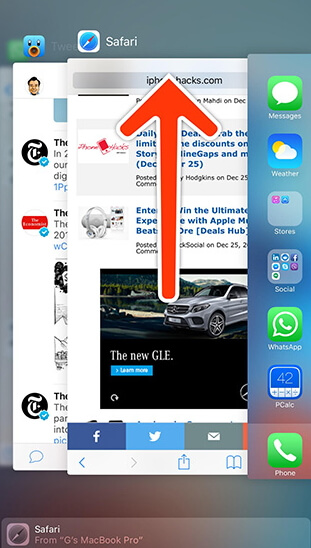
Step 1. Close the Mail app by double-clicking your Home button, which will open App Switcher.

Step 2. Swipe up the Mail app to close it.You may also like:Gihosoft iPhone Data Recovery

Step 3. Launch the Mail app again by clicking on it from the iTunes Homepage.
Solution 3.Delete and Re-add Email Account

Do you know that deleting and re-adding your email account resets your emails’ server identity certificates? This would allow your email account to be easily verified by mail app.

Step 1. Remove your email account by launching Settings app on your iOS device. Click “Accounts & Passwords” and search for the email account you want to delete, and then select it.

Step 2. Tap the “Delete Account” button at the bottom of the page, and click “Delete Account” again to confirm your action.


Step 3. To re-add your email account, click “Account & Password” from Settings app, select the mail service and enter the appropriate information.
The Main Reasons for this Mail App Error

There could be many reasons why you are receiving the error notification “Cannot Verify Server Identity iOS 12” when trying to send emails on your iPhone. Here are some of the reasons:

There is an error in your email’s server identity certificate settings.

It may be coming from a faulty Mail app.

It may be because of ISP having an issue with its server identity certificate.

It may due to lack of update from Apple iOS, Mail or other related applications.
For now, check:Free iTunes/iPhone Backup Extractor for iPhone, iPad
Jihosoft iTunes Backup Extractor free is a powerful tool to recover and extract important data from iPhone, iPad & iPod touch backup on Windows or Mac.
Jihosoft Android Data Recovery: the best Android Data Recovery software for Windows and Mac to recover deleted contacts, messages, photos, videos, WhatsApp and etc from Android devices.
Gihosoft Android data recovery Free is a super awesome software specialized in Android file recovery. With this program, you are able to recover deleted photos, music, videos, messages, contacts, call logs, WhatsApp messages, Viber chat history and more from Samsung, Huawei, LG, HTC, Motorola, Google, Oneplus, Sony, Lenovo, ZTE and other Android devices directly. Meanwhile, this Android data recovery software is available for both Windows and Mac platforms.
If you can’t sync with iTunes and want to rescue data from a disable iPhone, you could try Gihosoft iPhone Data Recovery. Also feel free to ask questions on the iDevice is disabled error in the comments section below.

Sunday, 5 August 2018

How to Unlock Samsung Galaxy A7 by IMEI

How to Unlock Samsung Galaxy A7 by IMEI

Having a locked mobile can create a different kind of issues and you are restricted to only one network services. It may be needed to utilize more than one network services at different times according to your needs. That’s why it is crucial to SIM unlock Samsung Galaxy A7, and you need to know the complete process to do so. The good news is that we are presenting the entire way to unlock your A7 and you just need to follow the below-mentioned step by step procedures.
Sponsor ads:View & Share Saved WiFi Password on iPhone Xs Max/X/8/7/6s


The complete method consists of two requirements, and you can read and fulfill both requirements for your A7 quickly from below. Read below if you want to unlock Samsung Galaxy without data loss permanently by IMEI.

Best Samsung Data Recovery Software: Easily recover deleted/lost photos, messages, contacts, call Logs, WhatsApp, musics, videos etc. from all Samsung devices.


5 Steps to Get the Unlocking Code From UnlockBoot

Step 1: First, you need an unlocking code which is used to unlock Samsung Galaxy A7 phones, and the procedure is straightforward to do so. You click and go to the link available at this page. After that, follow the below steps.

Step 2: You need to know IMEI number of your mobile, and it is a 15 digits code. If you already don’t know the code, you can know it by just dialing *#06#. After getting the IMEI number, provide it in the required section and continue the process.


Step 3: Now give the information about your current network which you bought with your mobile and select your country name. Both of things are those which you originally bought with your mobile.

Step 4: After the above steps, provide your email address. We will send your unlock code to your email privately. Therefore, you should give a valid email.


Step 5: At the last step of this, you need to pay to get the Galaxy A7 unlock code. The charges are appropriate, and you would enjoy the unlocked freedom. You can see different ways to spend and select anyone which is easy to choose.
Enter the Received Galaxy A7 Unlock Code

Step 1: Now as you have the unlocking code, you can go to unlock your mobile using the code. So, insert another carrier SIM into your Galaxy A7, and do not insert the original SIM card.

Step 2: Now wait a while, and you will see “Enter Unlock Code” or “Sim Network Unlock Pin” messages. After it, enter the received code in the input area which will be blanked.


Step 3: After that, your mobile will be unlocked, and you will be able to use mobile services of all networks on your A7. Some of the networks include Vodafone, Telus, Claro, Orange, AT&T, T-Mobile, Rogers, O2, SFR, Fido, TIM and any other carrier in the world.


All done and you are allowed to enjoy any network which suits you the best for you according to the conditions.

One significant point to remember that in some cases the unlocking steps may change due to the different original network of a phone. So, if you don’t see any “Enter Unlock Code” or “Sim Network Unlock Pin” messages as we mentioned above, don’t worry. Just try to dial 2945#*model number# or *#865625# and wait to enter the unlock code prompt. Now provide the right unlock code, and it will surely unlock your Samsung Galaxy A7 phone.
Jihosoft Android Data Recovery: the best Android Data Recovery software for Windows and Mac to recover deleted contacts, messages, photos, videos, WhatsApp and etc from Android devices.


Photo recovery free photo recovery 100% free to restore deleted/formatted/lost pictures in just three steps Photo recovery free photo recovery software.
Any app suggestions or topic recommendations are appreciated in the comments down below.


Wednesday, 1 August 2018

How to Fix iPhone Overheating after Updating to iOS 12?


How to Fix iPhone Overheating after Updating to iOS 12?
iOS 12 Overheating? Quit All Running Apps First


As is known to all, iOS keeps previously opened apps running in the background, and this adds more workload on the processor. The more commands your device carries out per time, the more it gets exhausted and overheats. Consequently, it is advisable to close all background apps as often as possible to lessen workload and overheating tendencies.


To close running apps on your device with iOS 12:


Press the Home button twice to display opened apps thumbnails.


Swipe up the thumbnails of each opened app


Repeat until all opened apps are closed.


Never Using iPhone While Charging


Phone charging is a heat-generating activity. While it is understandable that we bunch of work on our phones, thus requiring it to be in constant use, it is important to avoid using your iPhone while it’s charging. Leave it to get full, and use afterward.
You Can Also Restart Your iPhone


Sometimes, iOS 12 overheating due to overworking and just needs to rest and reload. So next time you notice overheating, simply restart it by turning it off for some few minutes, and then back on. This gives the device some time to cool off.


Ads:


Gihosoft Free iPhone Data Recovery is a professional iPhone Data Recovery software to get back all your lost text message, photo, video, call history, note, contact and more from iPhone/iPad/iPod Touch. It offers a full solution to recover your lost data in different tough situations. Besides recovering data directly from iPhone, iPad and iPod touch, it also allows you to recover data from iCloud and iTunes backup files.
iPhone backup unlocker:Recover iTunes Backup Password.
iPhone backup extractor free:The best iPhone Backup Extractor software to extract photos, text messages, contacts, voice memos, note, WhatsApp, Viber and etc from iPhone/iPad backup.